Canva Websites Review: The Canva Website Builder, Documented
The Canva website builder is not a separate product; it is a publish button. A Canva website is a Canva design — the same canvas the world makes Instagram posts on — rendered live at a URL. That single fact, which Canva's marketing does not lead with, explains everything else in this review: what the tool is effortlessly good at, where it collapses, why its free tier caps things no other builder has ever needed to cap, and why we score it exactly in the middle of our register.
Rating: 7.0. The documentation of how we got there follows.
What a Canva website technically is
When you publish a website from Canva, the platform renders your design as a live webpage. Historically these were single scrolling pages; multi-page support has since expanded — Canva Create 2025 made adding pages noticeably easier — and a site can now run to 45 pages. The architecture underneath did not change to match the ambition. The built-in navigation menu is anchor-link based: it jumps between sections of a page rather than behaving like the navigation of a conventional multi-page site. The one-pager DNA shows every time a visitor clicks the menu.
None of this is a complaint about the editor, which is the real Canva editor and therefore excellent at arranging things beautifully. It is a description of the output. What comes out is a design, published — and whether that constitutes a website depends entirely on what you need the website to do. The rest of this review is an attempt to draw that line precisely.
Affiliate link. We may earn a commission — it never moves a ranking.
The free tier: five sites and a footer
Canva Free publishes real, live websites — up to 5 of them per account, on the free my.canva.site domain. Each carries a Designed with Canva footer that is mandatory on the free plan and cannot be removed without upgrading. The five-site ledger is per account, so retiring an old event page frees a slot — light housekeeping that no other product on our list asks of its free users. As free tiers on our register go, this one is mid-table: more generous than Adobe's single-format offering, far less of a product than Square's free store, and considerably better than nothing, which is what Microsoft offers at this price.
The section trap
The distinctive catch deserves its own section, because we have not documented its equal anywhere else. Condensed from the documented terms:
Free accounts can design up to 20 sections per page but publish only 10; paid plans (Pro, Business, Education) publish up to 20. — condensed from Canva's publishing documentation, checked August 2026
Read that as a user journey. Canva Free will happily let you build a page twice as long as it will let you ship, and informs you at the publish step — after the work is done — that half of it must go or money must appear. Most free plans gate features you have not used yet. This one gates the second half of a page you have already made. As a conversion mechanism it is presumably very effective, and we intend no compliment by saying so. Budget your page at ten sections from the start, or budget for Pro.
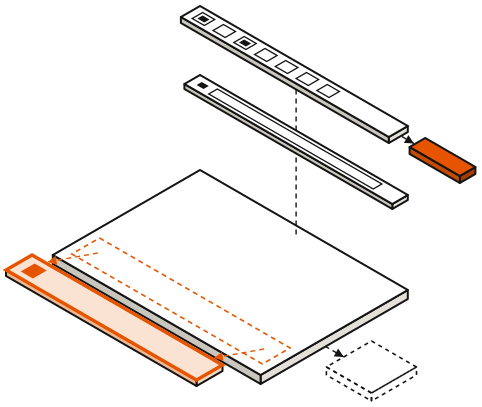
Each slab is one section. Solid: published. Dashed: designed in the editor, held back on the free plan.
Pricing: what Pro actually costs
Canva Pro is $18 per month, or $144 per year on annual billing, for a single user. For websites specifically, it lifts the publish cap to 20 sections, removes the mandatory footer, makes published sites unlimited, and unlocks connecting a domain you already own. Canva Business runs $25 per user per month ($250 per user per year); Enterprise is custom-quoted. A 30-day Pro trial exists, which is the correct way to discover whether the paid limits fit before paying for them.
Two details resisted verification at the time of checking, so we soften them accordingly: exactly how the section limits interact on the Business and Education tiers, and whether Canva's site analytics remains a paid-plan feature. Canva's help center blocks automated retrieval with some enthusiasm, so those specifics come from its search-index listings and corroborating coverage rather than the pages themselves.
Custom domains: two doors, one toll
There are two ways to put a Canva site on a real domain. Door one: buy a new domain through Canva — roughly $18.99 to $25 per year depending on the TLD, auto-renewing, with Whois privacy included. Door two: connect a domain you already own, which requires a paid plan. The purchase route works from any tier; the connection route is the toll booth. In practice, if you already own your name, the price of pointing it at a Canva site is a Pro subscription — worth knowing before you design anything.
The machinery you do not get
It is worth being concrete about the absences, because they define the product's perimeter. There is no product catalog or checkout of any kind. There is no blog engine, so content marketing means manually adding pages to a design. There are no native forms — collecting so much as an email address means embedding a third-party tool. And search-engine controls are minimal, which matters if the site is meant to be found rather than shared. None of these are bugs; they are the predictable shape of a publish button attached to a design tool. But every one of them is a wall you will meet in month two, not day one.
Where it genuinely works
Judged inside its actual competence, Canva Websites is legitimately good. A portfolio that is mostly images. An event page with a date, a map and an RSVP link. A launch teaser, a wedding site, a link-in-bio hub, a one-page presence for a freelancer whose clients arrive by referral anyway. For each of these, the design-first pipeline is a feature rather than a limitation: the thing Canva is best at making is precisely the thing being published, and it goes from blank canvas to live URL faster than anything else on our register. If you already pay for Canva Pro, you own a genuinely useful one-page site builder at a marginal cost of zero — that is the honest pitch, and it is a decent one.
Where it embarrasses you
A multi-page business site is where the costume slips. There is no ecommerce — not a limited cart, none. No blog engine. No native forms. Minimal SEO controls. Navigation that jumps to anchors instead of pages. What you can assemble across 45 pages is not a small-business website; it is a very tall design with jump links, and visitors expecting a website's ordinary furniture — a working menu, a contact form, a product page — will eventually notice the furniture is painted on.
For a business that needs those organs, the comparison with a conventional builder is not close. We ran the full head-to-head in Canva vs Squarespace; the short version is that they are not the same species, and pretending otherwise costs you exactly one rebuild.
Verdict: a good publish button
Canva Websites closes at 7.0, scored as an actual website builder: superb inside the one-page radius, out of its depth beyond it, and operating a free tier whose sharpest limit is engineered to be discovered late. If a published design covers your needs — and for a real class of users it honestly does — use it without embarrassment.
If it does not, our big-tech website builders register ranks the alternatives in one table, and when you've outgrown them describes what graduation looks like. For the adjacent product in this genre, our Adobe Express review documents the same idea executed with less commitment; for the fine print across all five products, see the hidden limits of free big-tech builders. Canva's entry in that catalog is the section trap, and it has earned its place.
Position in the field: the big-tech website builders register. Outgrowing these products entirely is covered in when you’ve outgrown them.