Google Sites Templates (2026): The Built-in Gallery, Free Third-Party Templates, and What a Template Can't Change
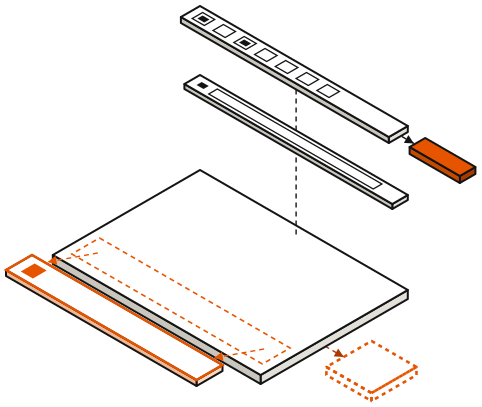
Google Sites templates come from three places: the free Template Gallery built into sites.google.com, third-party templates that are really someone else's Google Site you copy, and, on some Google Workspace editions, a gallery your own organisation curates. All three are free to use inside Google Sites, and all three hit the same ceiling: no template gives you page-level CSS, a checkout or an export. A template decides where you start, not where you can go.
Use templates if you want a tidy class page, portfolio, event page or team intranet in an afternoon. Skip the paid template stores if you expect a template to make Google Sites behave like a different builder; it cannot. Every rule below comes from Google's own help pages, read on 10 October 2026.
The short answer: where Google Sites templates come from
The built-in gallery is the default route. Google's help page for creating a site says that under "Start a new site" you select a template, and its instructions for the gallery end with a line that explains everything else on this page: "a copy of the template opens." A Google Sites template is not a theme applied to your site. It is a finished site that Google duplicates into your Drive, after which it is simply your site.
Third-party templates work the same way with a different author. A designer builds a Google Site, shares it, and you copy it. Workspace galleries are the organisational version: an administrator lets staff submit templates, or uploads default ones, and colleagues start from those instead of Google's.
| Source | Cost | How it installs | Who keeps it current | Main risk |
|---|---|---|---|---|
| Built-in Template Gallery | Free | Template Gallery, then a copy of the template opens | Looks like every other Sites page | |
| Free third-party template | Free | Open the shared site, then More, Make a copy | Nobody, once copied | Embeds may still point at the author's files |
| Paid template store | Seller's price | Same Make a copy step after purchase | Nobody, once copied | Paying for a layout you could rebuild |
| Workspace custom gallery | Included in eligible editions | Picked from your organisation's gallery | Your administrator | Only on some Workspace editions |
The built-in template gallery: what's in it
On a computer, open Google Sites and click Template Gallery at the top right, then pick a template; a copy opens in the editor. Google's settings menu also has a "Display recent templates on home screens" checkbox if you would rather not see the strip of recent templates at all.
Google does not publish a list or a count of its Sites templates, and the help pages say some template features depend on whether you are signed in with a personal Google account or a work or school one. Figures you will see quoted elsewhere come from third parties. We would rather tell you to open the gallery and count than print a number Google has not, so the honest answer to "how many templates does Google Sites have" is that Google does not say, and the set can differ by account type.
What the built-in templates share is structure. Each one is a stack of sections (header, text and image blocks, embeds, a footer) with placeholder copy and a starting theme. That is useful as scaffolding and easy to recognise: visitors who have seen a few Google Sites will spot the gallery's layouts.
Free third-party templates: how "make a copy" installation works
Free templates from independent designers are the bulk of what ranks for "google sites templates free". There is no marketplace inside Sites; the template is a published Google Site, and installing it means duplicating it. Google's help describes the step: open the site in Google Sites, click More, choose Make a copy, name the file, choose "Entire site", and click OK. You can also copy selected pages only.
Two practical consequences follow from that design. First, the copy is a snapshot: if the designer improves the original next month, your site will not change. Second, Google warns that "If your site is large, it may not copy," so very image-heavy templates can fail at the copy step. The author also has to give your account access to the source site, which is why template pages usually hand you a link rather than a download.
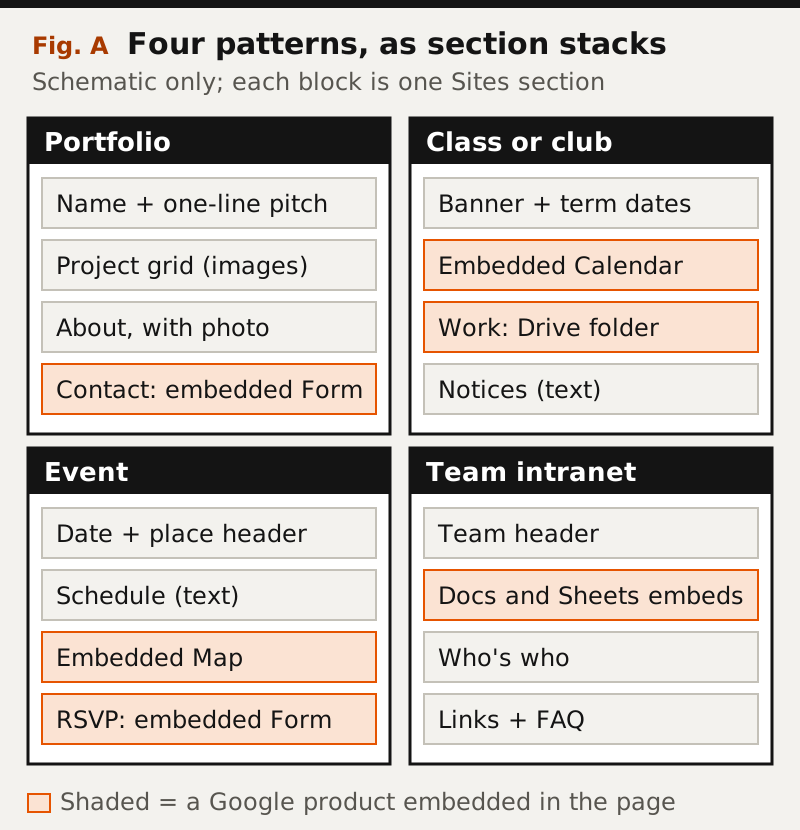
After copying, check every embedded item. An embedded Form, Sheet or Calendar in a template was created by the template's author, so before you collect a single RSVP, open each embed and make sure it points at a file your account owns. Replacing them takes minutes; finding out later that replies went to a stranger's Form takes longer.
Paid template stores: what you're buying
Several sites sell Google Sites templates, some of them hosted on sites.google.com themselves. What you buy is the same thing a free template gives you: access to a Google Site you then copy, plus whatever setup notes the seller includes. There is no code to license, because Google Sites gives the page no code layer to change. A paid template can be better designed than the gallery's, with more careful spacing, image treatment and section order, but it runs on the same editor and inherits every limit described below.
Pay if the design saves you real hours and you like it exactly as it is. Do not pay expecting features the free gallery lacks; there are none to sell.
Workspace accounts: your organisation's custom template gallery
Workspace administrators have two template controls, and they live on different editions. Custom templates, which let staff submit templates to a company gallery for Docs, Sheets, Slides, Forms and Sites, are listed by Google for Business Standard and Business Plus, Enterprise Standard and Plus, the three Education editions, Enterprise Essentials Plus, Nonprofits and the legacy G Suite Basic and Business. The admin turns them on under Template Gallery settings, can create categories, and can restrict or moderate who submits.
Default templates and themes are narrower: Business Plus, Enterprise Standard and Plus, and Education Plus. Here the admin uploads a template that appears directly in Sites for chosen organisational units or groups. Google notes one Sites-specific limit: users can access only a single default template, the one from their lowest organisational unit. For a company that wants every team site to start from the same branded skeleton, that is the right tool; Business Starter accounts do not get either control.
What a template can't change
A template sets the starting pages, the order of sections, placeholder text and images, and a starting theme. Everything in that list stays editable after you copy it: sections, pages and menus, the theme's fonts and colours, and embeds of Docs, Sheets, Forms and Maps. Custom themes with your own fonts, colours and logo arrived in September 2023 and remain the deepest design control Sites offers.
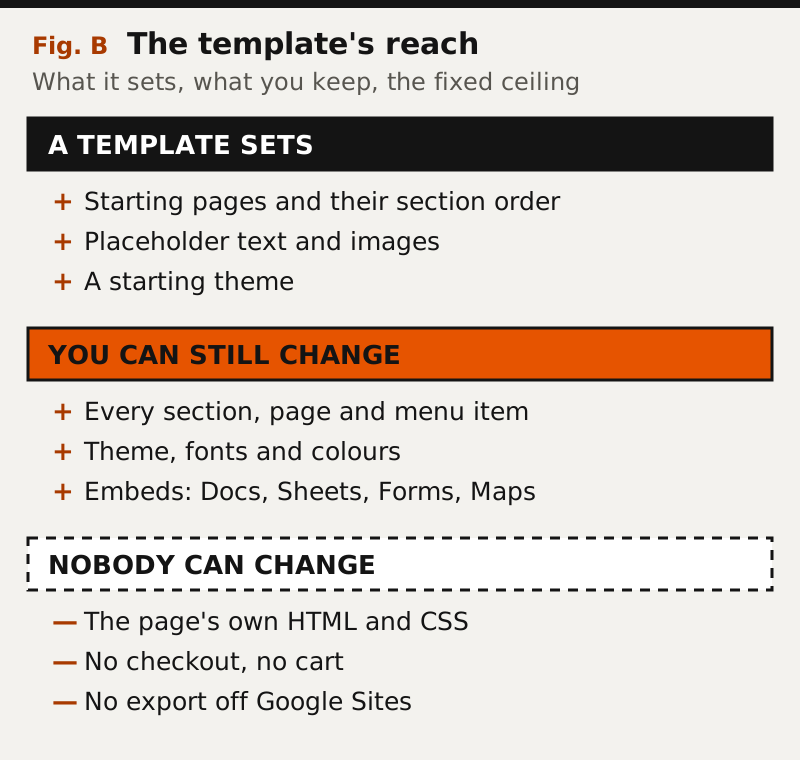
What no template touches is the product's floor. There is no HTML or CSS access to the page itself; custom code runs only inside sandboxed embeds. There is no cart or checkout. And there is no export: a Google Site cannot be downloaded or moved to another platform. So choosing a template is also choosing Google Sites for as long as the site lives, which is fine for a classroom hub and worth a second thought for a business.
Template patterns for common sites
Most templates, built-in or bought, are variations on four patterns. A portfolio leads with a name and a one-line pitch, then a project grid, an about section and a contact Form. A class or club page puts dates in the banner and leans on an embedded Calendar and a shared Drive folder. An event page needs the date and place up top, a schedule, a Map and an RSVP Form. A team intranet is mostly embeds: live Docs and Sheets, a who's-who section and a links page. If you know which pattern you need, you can build it from a blank site in roughly the time it takes to strip a template's placeholder content, and you will own every embed from the start. Our Google Sites examples page specifies four builds of this kind in full.
Edge cases worth knowing before you copy
Treat the copy as a new site and check its sharing and publish settings before you send anyone the address. Copies also land in your Drive and count toward the same storage as your mail and files. If you plan to put a custom domain on the site later, remember that only the site's owner can connect one, so copy the template into the account that will own the site rather than a personal one you will hand over later. And if you later move the site into a shared drive, Google's domain help says a connected custom domain may stop working.
When you've outgrown templates
Templates stop helping when the problem is the ceiling rather than the starting point: you need a store, a blog with categories, a design that does not look like Google Sites, or a way to leave. That is the moment for a general builder. Wix and Squarespace both offer template libraries where the template is a starting design on a platform with commerce and blogging built in; our Google Sites review covers what you give up and keep, and the full field is ranked on our big-tech website builders register.
Frequently asked questions
Q.01Are Google Sites templates free?
Yes, the built-in Template Gallery is free with any Google account, and so are most third-party templates. Some designers sell templates, but a paid template is still a Google Site you copy, with the same features and limits as a free one.
Q.02How do I use a Google Sites template?
Open Google Sites on a computer, click Template Gallery at the top right and pick a template; a copy opens for you to edit. For a third-party template, open the shared site in Google Sites, click More, then Make a copy, and choose Entire site.
Q.03How many templates does Google Sites have?
Google does not publish a list or a count, and what you see can depend on whether you use a personal or a work or school account. Counts quoted online come from third parties, so open the Template Gallery to see the current set.
Q.04Can I make my own Google Sites template?
In some Google Workspace editions, yes: administrators can turn on custom templates so staff submit sites to a company gallery, and on Business Plus, Enterprise and Education Plus they can set a default Sites template. With a personal account, the practical route is to build a site and copy it.
Q.05Can a template add custom code or a store to Google Sites?
No. A template is a copy of an ordinary Google Site, so it cannot add page-level HTML or CSS, a checkout or an export. Custom code runs only inside sandboxed embeds, whatever template you start from.
Position in the field: the big-tech website builders register. Outgrowing these products entirely is covered in when you’ve outgrown them.